
Introduction
Tracking your time should make work clearer, not more complicated.
If you manage client projects, remote teams, shift workers, or your own freelance workload, you need a time tracking tool that helps you understand where hours go, what work is billable, and which projects are becoming less profitable.
That is where Clockify remains one of the most recognizable names in the time tracking software category.
For years, Clockify stood out because of its generous free plan and simple interface. However, the product has changed, and this Clockify review has been updated for 2026 to reflect the current plan structure, pricing, features, limitations, and best-fit use cases.
The most important update is this: Clockify’s Free plan is now best understood as a strong starter plan for up to 5 users, not an unlimited-user free plan for growing teams. That does not make Clockify weak. It simply changes how you should evaluate it against tools like Toggl Track, Hubstaff, Harvest, TimeCamp, and Jibble.
In this Clockify review, you’ll learn how the platform works, what each plan includes, where Clockify performs well, where it falls short, and whether it is the right time tracking tool for your workflow in 2026.
| Clockify Review Summary | Details |
| Best for | Freelancers, consultants, agencies, service teams, remote teams, and small businesses |
| Free plan | $0 for up to 5 users |
| Starting paid price | $3.99 per seat/month billed annually |
| Best value plan | Standard for approvals and billing, Pro for scheduling, profitability, GPS, and screenshots |
| Main strength | Flexible time tracking with strong reporting, apps, integrations, and affordable paid plans |
| Main limitation | Not a full project management platform and advanced controls require paid plans |
| Best alternatives | Toggl Track, Hubstaff, Harvest, Jibble, and TimeCamp |
Overview
What Is Clockify and How It Works
Clockify is a time tracking, timesheet, reporting, and workforce visibility tool built to help you log work hours across projects, clients, tasks, and teams.
At its core, Clockify helps you answer practical questions:
- How much time did you spend on a project?
- Which hours are billable and non-billable?
- Are projects going over budget?
- Who worked on what, and when?
- Can tracked hours be approved, exported, or turned into invoices?
Clockify is not a traditional project management platform like ClickUp, Asana, or monday.com. It does not give you deep task dependencies, advanced workload boards, or built-in collaboration spaces.
Instead, it focuses on time data. That is exactly why it works well for freelancers, consultants, agencies, software teams, service businesses, and operational teams that already use another project management tool but need better visibility into tracked hours.
How Clockify Works: Simple and Flexible
Clockify gives you several ways to track time, so you are not forced into one rigid workflow.
- Timer mode – Start and stop a timer while you work.
- Manual entry – Add past hours for meetings, admin work, or offline tasks.
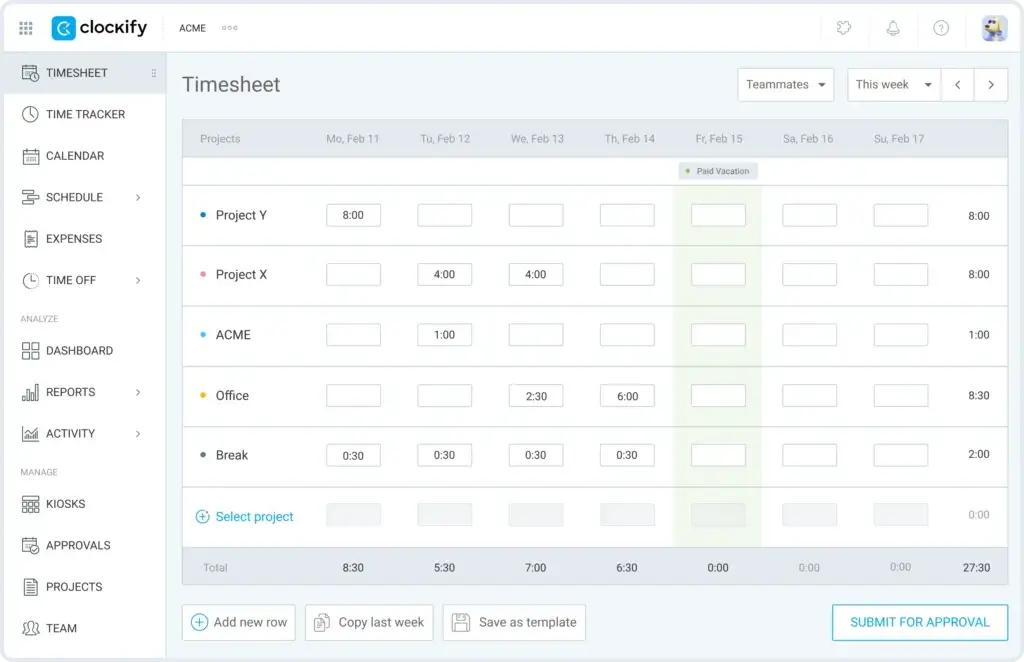
- Timesheets – Enter hours in a weekly format for structured team reporting.
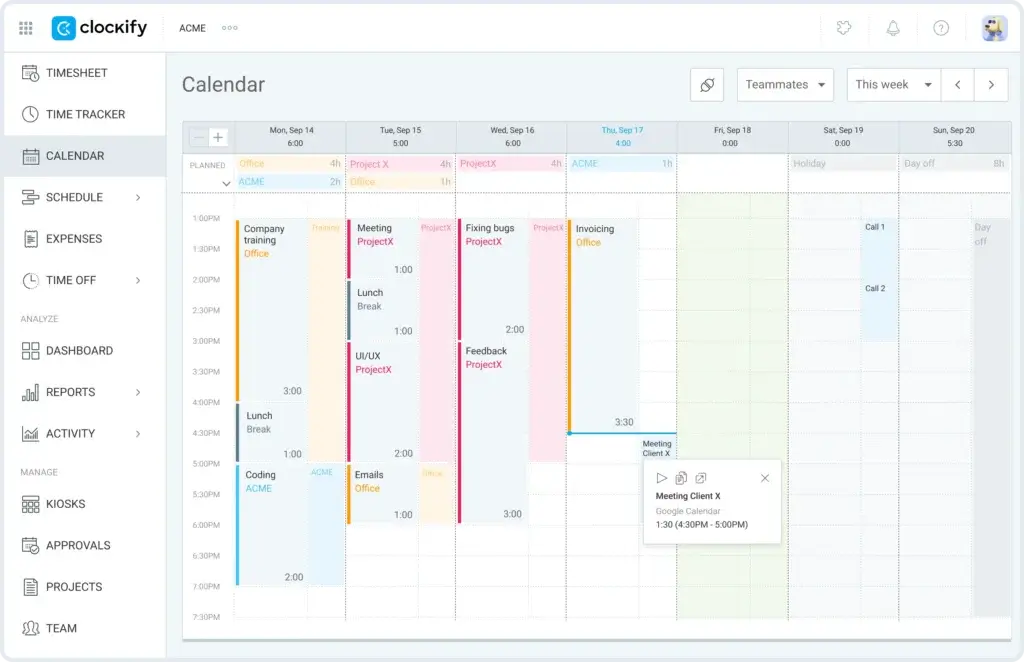
- Calendar view – Review and organize work blocks visually.
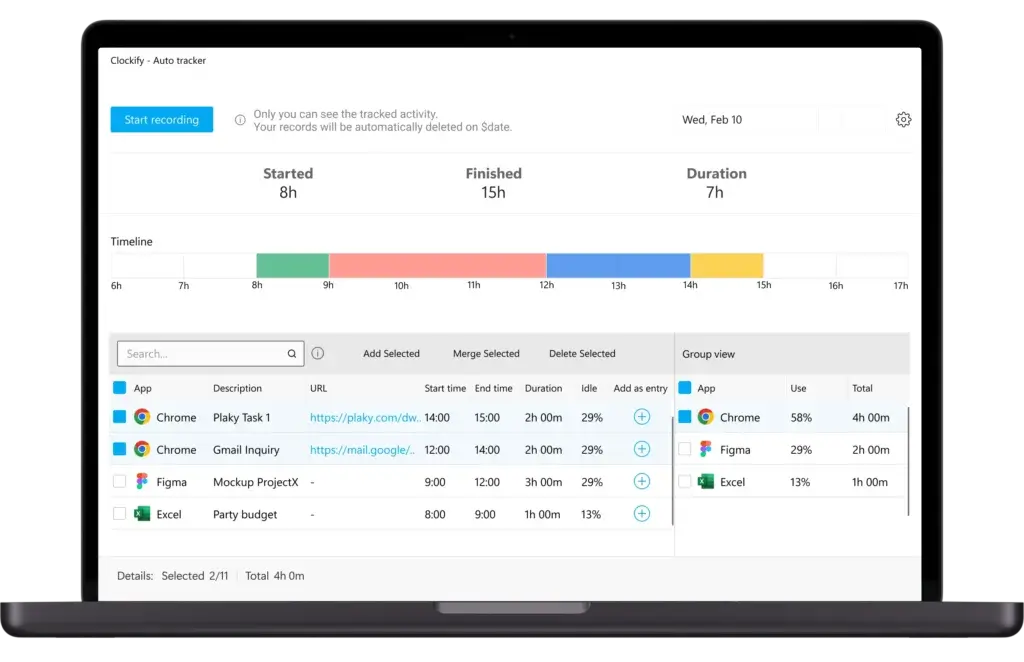
- Auto tracker – Track app and website activity locally, then assign time later.
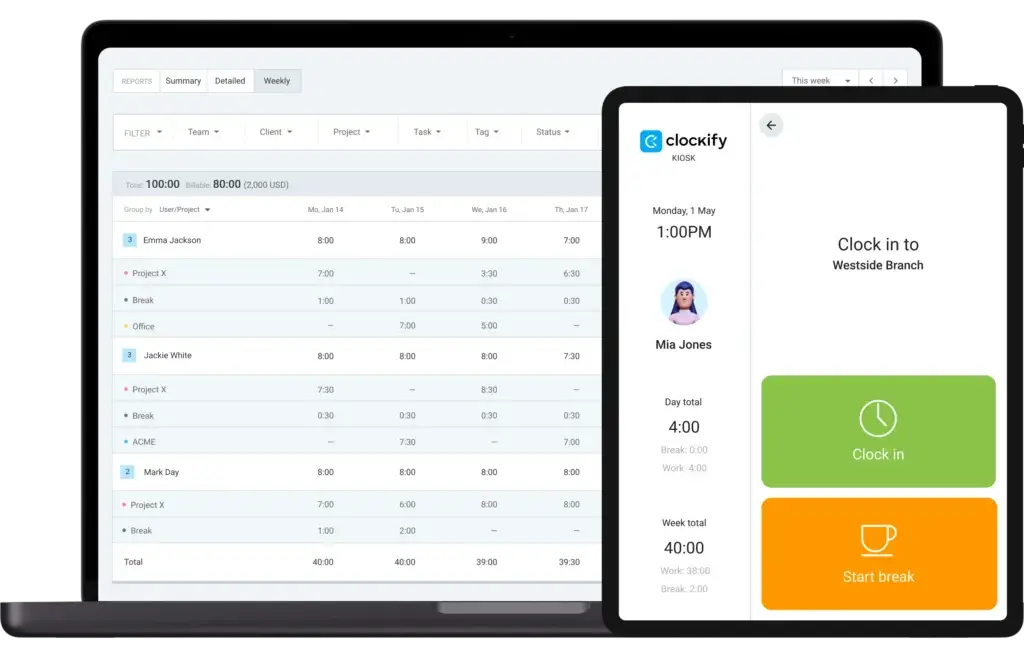
- Kiosk mode – Let employees clock in and out from a shared device.
- Mobile and desktop apps – Track time from your browser, computer, tablet, or phone.
For most users, the biggest advantage is flexibility. A freelancer can start a timer from a browser extension, while a manager can review timesheets, approvals, budgets, and reports from the web dashboard.
Supported Platforms
Clockify works across web, desktop, mobile, and browser extensions, which makes it useful for remote, hybrid, and field-based teams.
- Web app for full workspace management and reporting
- Desktop apps for Windows, Mac, and Linux
- Mobile apps for iOS and Android
- Browser extensions for Chrome, Firefox, and Edge
- Kiosk access for shared devices
This cross-platform coverage is one of Clockify’s strongest practical advantages. You can track time from a laptop during deep work, from your phone between meetings, or from a shared kiosk in an office, warehouse, clinic, or job site.
Use Case Flexibility
Clockify fits several business models because time tracking is useful across many workflows.
Freelancers can use it to separate billable and non-billable work. Agencies can track time by client, project, task, and hourly rate. Managers can use approvals and attendance reports to review logged hours before payroll or client billing.
That said, you should choose the plan carefully. The free plan is best for solo users and very small teams. Teams that need approvals, invoicing, time off, scheduling, budgets, GPS, screenshots, or stronger admin controls will likely need a paid plan.
Core Features of Clockify
Main Features Breakdown
Clockify has grown beyond basic stopwatch-style tracking. It now covers timekeeping, timesheets, reporting, approvals, expenses, scheduling, invoicing, location tracking, screenshots, and enterprise administration.
The depth you get depends heavily on the plan you choose. The Free plan is useful for core time tracking. The paid plans unlock controls that matter more for teams, agencies, and larger organizations.
Time Tracking Tools That Fit Different Work Styles
Clockify gives you multiple ways to capture work hours, which makes it easier to get consistent data from different types of users.
- Timer – Start real-time tracking while you work.
- Manual entries – Add missing time for past tasks.
- Timesheet – Enter weekly hours in a structured format.
- Calendar – See tracked work in a visual timeline.
- Pomodoro timer – Use focused work sessions directly inside the tracker.
- Idle detection – Detect inactivity and clean up inaccurate logs.
- Offline tracking – Track time from supported apps and sync later.
This flexibility is useful because not everyone tracks time the same way. Developers may prefer timers, consultants may prefer weekly timesheets, and managers may prefer reports and approvals.
Timesheets, Approvals, and Attendance
Clockify becomes more useful for teams when you add approval workflows. Instead of simply trusting raw time entries, managers can review submitted hours before locking them for payroll, billing, or compliance.
On paid plans, Clockify can support timesheet approvals, time locking, reminders, attendance reports, overtime tracking, and time off management. This makes it more than a personal time tracker. It becomes a lightweight operational system for reviewing work hours.
If your team needs timesheets for payroll or client billing, this is one of the first reasons to move beyond the Free plan.
Project, Client, and Task Tracking
Clockify lets you organize work by client, project, task, tag, and billable status. This structure is important if your business needs to understand not only how much time was tracked, but also where that time belongs.
You can assign hourly rates, create estimates, review budgets, and separate billable from non-billable work. For agencies and consultants, this is especially valuable because inaccurate time tracking often leads to underbilling, poor forecasting, and unclear project profitability.
However, Clockify is not built to replace a dedicated project management software. You can track tasks and budgets, but you will still need another tool if you rely on kanban boards, Gantt charts, dependencies, sprint planning, or advanced collaboration.
Reports and Dashboards
Clockify’s reporting is one of its strongest features. You can review time by user, project, client, tag, task, billable status, date range, and more.
- Summary reports – High-level totals by project, client, user, or task.
- Detailed reports – Granular time entry data for auditing and exports.
- Weekly reports – A practical overview of team activity by week.
- Exports – Download reports for payroll, invoicing, or client documentation.
- Email reports – Send reports automatically on supported paid plans.
For most service businesses, the reporting module is where Clockify creates the most business value. The timer helps you collect data, but reports help you make decisions from that data.
Invoicing, Expenses, and Billing
Clockify can generate invoices from tracked billable time, which is useful if you bill clients based on hours worked. This is especially helpful for freelancers, consultants, agencies, accountants, legal professionals, and implementation teams.
Invoicing is no longer something you should frame as only a Pro-level feature. Clockify’s current plan structure places invoicing and recurring invoices in the Standard plan, while Pro adds more advanced profitability and productivity features.
You can also track expenses on higher-tier plans, which helps when client work includes reimbursable costs, travel, materials, or subcontractor-related expenses.
Scheduling, Forecasting, GPS, and Screenshots
Clockify’s Pro plan is where the platform starts to feel more like a team operations tool. Pro includes scheduling, forecasting, expenses, labor cost and profit, budget and estimates, alerts, GPS tracking, screenshots, and data region options.
This makes Pro the better fit if you need more than simple timesheets. For example, field teams may care about GPS. Remote team managers may want optional screenshots. Agencies may need profitability tracking. Operations teams may need workload planning and forecasts.
My view: Clockify’s monitoring features are useful, but they are not as deep as Hubstaff’s employee monitoring stack. If your main priority is surveillance-style productivity tracking, Hubstaff is stronger. If your priority is time tracking with optional oversight, Clockify feels more balanced.
Recent Product Updates
What’s New in Clockify in 2026?
Clockify has continued to expand beyond basic time tracking, and several recent updates are worth mentioning in a 2026 review.
The biggest theme is that Clockify is becoming more useful for teams that need stronger approval workflows, attendance reporting, kiosk accountability, identity management, and project profitability insights.
| Recent Update | Why It Matters |
| Separate expense approval | Teams can review expenses separately from timesheets, which is useful when finance and project managers approve different records. |
| More flexible recurring assignments | Scheduling can support monthly and bi-weekly assignments, which helps teams with repeating project or shift patterns. |
| Kiosk photo capture | Clockify can capture photos when users clock in through kiosk, helping reduce buddy punching in shared-device workplaces. |
| Attendance report summary and grouping | Managers get a cleaner view of attendance, breaks, overtime, and work patterns. |
| Approval timestamps in exports | Timesheet submission, approval, and rejection timestamps improve payroll review and audit visibility. |
| Field mapping on import | Imported data is easier to control, which helps teams migrate from spreadsheets or other time tracking tools. |
| SCIM provisioning | Enterprise teams can sync members and groups through an identity provider. |
| Assignment report profit columns | Expected profit and realized profit columns help agencies compare planned financial outcomes with actual project results. |
For readers comparing Clockify with older reviews, this section is important. Many outdated reviews still focus mostly on the free plan, while Clockify’s recent updates show a stronger push toward workforce administration, project profitability, and enterprise account control.
Pros and Cons
Real-World Advantages and Disadvantages
Clockify is easy to recommend for many users, but it is not the right fit for every team. Its biggest strengths are affordability, flexibility, cross-platform access, and reporting. Its biggest weaknesses are limited project management depth, paid feature gates, and a functional but not very modern interface.
Positive
✅ Easy time tracking across devices
✅ Affordable paid plans
✅ Strong reports and exports
✅ Good fit for billable work
✅ Useful approvals, invoicing, and kiosk features
Negative
❌ Free plan is limited to up to 5 users
❌ Not a full project management tool
❌ Advanced features require paid plans
❌ Interface is practical but basic
❌ Monitoring features are not as deep as Hubstaff
Top Benefits of Using Clockify
Simple time tracking
Clockify is easy to start using. You can run a timer, add manual hours, fill a timesheet, or organize time in a calendar view without a long onboarding process.
Strong value for paid teams
Clockify’s paid plans remain competitively priced, especially when compared with tools that become expensive at scale.
Useful reporting for billing and operations
Reports can be filtered by project, user, client, task, tag, billable status, and date range. This makes Clockify useful for client billing, payroll preparation, project reviews, and productivity analysis.
Good fit for agencies and consultants
With billable rates, project budgets, estimates, expenses, invoicing, and profitability features, Clockify is well suited for service businesses that need better control over time and money.
Works with your existing stack
Clockify integrates with many common work tools, including project management, communication, calendar, and accounting tools. This helps you keep your current workflow while improving time tracking accuracy.
Common Drawbacks to Consider
The Free plan is no longer the unlimited-user hook it once was
Clockify’s Free plan is still useful, but you should position it accurately as a plan for up to 5 users. Teams above that limit need to evaluate paid pricing.
It does not replace project management software
You can organize work by project and task, but you do not get the collaboration depth of a full PM platform.
Advanced features are split across paid plans
Approvals, invoicing, time off, GPS, screenshots, scheduling, forecasting, audit logs, and SCIM are not all available on the entry-level plan.
The interface is functional rather than polished
Clockify is easy to use, but it does not feel as modern or visually refined as Toggl Track.
Monitoring is not the main strength
Clockify includes GPS and screenshots on Pro, but Hubstaff remains stronger if employee monitoring is your primary need.
User Experience and Interface
What’s It Like to Use Clockify?
Clockify’s user experience is straightforward. That is both a strength and a weakness.
If you want a practical tool that gets out of the way, you will likely appreciate Clockify. If you want a highly polished, design-forward interface, Toggl Track may feel more enjoyable.
A Clean, Practical Dashboard
When you open Clockify, the timer and time entry workflow are easy to understand. You can create projects, choose tasks, mark time as billable, add tags, and start tracking quickly.
The navigation is also logical. Time tracker, timesheet, calendar, reports, projects, team, and settings are easy to find. This matters because time tracking tools fail when users avoid them. Clockify keeps the daily experience simple enough that adoption should be manageable for most teams.
Cross-Platform Consistency
Clockify feels consistent across web, desktop, mobile, and browser extension experiences. This is useful if your team works from different locations or devices.
The browser extension is especially valuable if you work in tools like Trello, Asana, Jira, ClickUp, or similar task platforms. Instead of switching back to Clockify constantly, you can start tracking from the context of your work.
Admin Setup Takes More Thought
Clockify is easy for individuals, but team setup requires more planning. You should decide how to structure clients, projects, tasks, tags, billable rates, approval rules, and required fields before rolling it out widely.
If you skip this step, your reports can become messy quickly. For example, one person may track “design,” another may track “Design Work,” and another may track everything under a general project label. Clean setup is what turns Clockify from a timer into a reliable reporting system.
Mobile Experience
Clockify’s mobile app is useful for logging time on the go, checking entries, and tracking work away from a desk. It is especially helpful for field teams, consultants, and managers who need to review time while traveling.
That said, the mobile experience should not be the only reason you choose Clockify. The web app remains the strongest place for reporting, administration, and deeper workspace management.
Connecting Clockify to Your Workflow
Clockify Integrations and Browser Extension
Clockify’s integration ecosystem is one of the reasons it works well as a companion tool rather than a replacement for your entire software stack.
Clockify says it integrates with 100+ web apps, and its browser extension can add timer buttons inside more than 90 web apps. This matters because users are more likely to track time accurately when the timer appears inside the tools they already use.
| Integration Category | Examples | Why It Matters |
| Project management | Asana, Trello, Jira, ClickUp, monday.com, Wrike, Teamwork | Track time from tasks, cards, issues, and work items without switching tools constantly. |
| Calendar | Google Calendar, Outlook | Track or review time from meetings and scheduled events. |
| Accounting and billing | QuickBooks, Xero, Peppol e-invoicing | Connect tracked time with billing, payroll, and invoicing workflows. |
| CRM and support | HubSpot, Salesforce, Zendesk, Freshdesk, Help Scout | Track time spent on tickets, leads, support work, and customer activity. |
| Developer tools | GitHub, GitLab, Azure DevOps, YouTrack | Track time from issues, pull requests, and development work items. |
| Automation | Zapier | Connect Clockify to broader workflows when a native integration is not enough. |
The practical takeaway is simple: Clockify is a strong choice if your team already manages work somewhere else but needs a dedicated time tracking layer across that stack.
Pricing and Tiers
How Much Does Clockify Cost?
Clockify’s pricing is one of the main reasons it remains competitive in 2026. The platform is still affordable compared with many time tracking tools, but you should pay close attention to what is included in each plan.
The Free plan is now listed for up to 5 users. Paid plans are charged per seat and become more valuable when you need controls, approvals, invoicing, scheduling, GPS, screenshots, or enterprise security.
You can always check the latest pricing on Clockify’s official pricing page, since SaaS pricing can change.
Clockify Plans Overview
| Plan | Annual Price | Monthly Price | Best For | Key Features Included |
| Free | $0 | $0 | Solo users and very small teams | Time tracking, timesheets, auto tracker, calendar, apps, reports, API, up to 5 users |
| Basic | $3.99 per seat/month | $4.99 per seat/month | Teams needing admin control | Kiosk, required fields, bulk edit, time audit, project templates, billable rates, exports |
| Standard | $5.49 per seat/month | $6.99 per seat/month | Teams needing approvals and billing | Time off, invoicing, recurring invoices, approval, lock time, attendance, reminders, QuickBooks |
| Pro | $7.99 per seat/month | $9.99 per seat/month | Agencies and operational teams | Scheduling, forecasting, expenses, labor cost, profit, budgets, GPS, kiosk photo capture, screenshots, alerts, data region |
| Enterprise | $11.99 per seat/month | $14.99 per seat/month | Larger teams and security-focused organizations | SSO, custom subdomain, SCIM provisioning, control accounts, audit log |
| CAKE.com Bundle | $12.99 per seat/month | $15.99 per seat/month | Teams that also need chat and project management | Clockify Enterprise plus Pumble team communication and Plaky project management |
How Clockify Paid Seats Work
Clockify paid plans are priced per active or invited seat. Owners, admins, managers, and members count as paid seats when they appear on your Team page. Deactivated users do not occupy a paid seat.
This matters if you work with contractors, seasonal workers, part-time staff, or temporary project teams. If someone only needs short-term access, you can deactivate that user later to free the seat instead of keeping unnecessary paid users active.
Clockify Kiosk Pricing for Limited Users
Clockify also offers lower-cost limited seats for employees who only need to clock in and out through kiosk mode. This is useful for shift workers, job sites, clinics, warehouses, retail locations, and other workplaces where not every employee needs a full Clockify account.
| Plan | Annual Limited Seat Price | Monthly Limited Seat Price | Best For |
| Basic | $0.79 per limited seat/month | $0.99 per limited seat/month | Basic kiosk clock-in and clock-out workflows |
| Standard | $1.19 per limited seat/month | $1.49 per limited seat/month | Kiosk plus approvals, attendance, time off, and billing workflows |
| Pro | $1.59 per limited seat/month | $1.99 per limited seat/month | Kiosk plus GPS, screenshots, scheduling, forecasting, and profitability tools |
| Enterprise | $2.39 per limited seat/month | $2.99 per limited seat/month | Kiosk users in organizations that need stronger enterprise controls |
Limited users can only track time through kiosk. If an employee needs to use the mobile app, browser extension, or full workspace access, you will need to convert that person into a full user.
Which Clockify Plan Should You Choose?
The right Clockify plan depends less on your team size and more on how you use time data.
- Choose Free if you are a freelancer or very small team that only needs basic tracking.
- Choose Basic if you need stronger admin controls, kiosk, required fields, and better exports.
- Choose Standard if you need approvals, invoicing, time off, attendance, and reminders.
- Choose Pro if you need scheduling, profitability, budgets, GPS, screenshots, and advanced reporting.
- Choose Enterprise if you need SSO, SCIM, audit logs, custom subdomain, and governance controls.
For most small service teams, Standard is the most practical upgrade because it adds approvals and invoicing. For agencies, Pro is often the better long-term fit because labor cost, budgets, estimates, forecasting, and profit analysis become more important as client work scales.
Is Clockify Still Good Value?
Yes, Clockify still offers strong value, especially if you compare paid plans by feature depth. Its annual pricing is lower than many competing time tracking tools, and the gap becomes meaningful when you have several paid users.
However, the free-plan positioning is less powerful than it used to be. If you specifically need a free plan for more than 5 users, you should compare Clockify with alternatives such as Jibble. If you need a cleaner personal tracking experience, Toggl Track may feel better. If you need stronger employee monitoring, Hubstaff may be a better fit.
Privacy, Governance, and Enterprise Features
Clockify Security and Admin Controls
Security matters more in time tracking than many teams realize. Time tracking data can include client work, billing rates, employee schedules, locations, screenshots, expenses, and attendance information.
Clockify’s Enterprise plan adds several features that are especially important for larger companies and security-conscious teams.
- Single sign-on – Use identity providers through protocols such as LDAP/AD, SAML2, and OAuth2.
- SCIM provisioning – Sync users and groups through your identity provider.
- Custom subdomain – Move the workspace to a private company subdomain.
- Control accounts – Give authorized admins stronger account-level access for troubleshooting and control.
- Audit log – Review workspace actions by user, action, and date.
- Data region – Host Clockify data in supported regions on the Pro plan and above.
| Security Feature | Why It Matters |
| SSO | Centralizes login access through your company identity provider. |
| SCIM provisioning | Automatically syncs users and groups, reducing manual user management work. |
| Audit log | Helps admins review changes to entries, projects, expenses, and workspace activity. |
| Custom subdomain | Gives teams a cleaner private workspace link and better workspace governance. |
| Control accounts | Lets authorized admins troubleshoot and manage user accounts more directly. |
| Data region | Allows eligible customers to choose where Clockify data is hosted. |
These features make Clockify more credible for larger organizations. However, if you are a small team, you may not need Enterprise. Most small businesses will care more about roles, permissions, approvals, required fields, and clean reporting.
Clockify vs Alternatives
How Does It Compare?
Clockify competes in a crowded time tracking market. The right alternative depends on what you value most: price, user experience, invoicing, attendance, monitoring, automation, or project profitability.
Here is how Clockify compares with several major alternatives.
Feature Comparison Overview
| Tool | Best For | Main Advantage | Main Limitation |
| Clockify | Freelancers, agencies, small teams, and service businesses | Affordable paid plans, flexible tracking, strong reports, invoicing, scheduling, and admin controls | Free plan is limited to up to 5 users and project management depth is limited |
| Toggl Track | Freelancers, creatives, consultants, and teams that prioritize usability | Cleaner interface and smoother personal tracking experience | Paid plans cost more than Clockify |
| Hubstaff | Remote teams, field teams, and managers who need oversight | Stronger monitoring, screenshots, GPS, productivity insights, and workforce visibility | Can feel more surveillance-heavy than Clockify |
| Harvest | Professional services teams and agencies focused on billing | Excellent time tracking plus polished invoicing and payment workflows | Less flexible if you want low-cost scaling across many users |
| Jibble | Attendance tracking, kiosk, and shift-based teams | Strong free plan positioning, attendance tools, and time clock features | Less focused on project profitability and client billing than Clockify |
| TimeCamp | Automatic time tracking and productivity visibility | Stronger automatic tracking workflows for teams that want less manual entry | Less focused on client billing and agency profitability than Clockify |
Clockify vs Toggl Track
Toggl Track is the better choice if you care most about the daily tracking experience. Its interface feels more polished, especially for freelancers, designers, marketers, consultants, and knowledge workers.
Clockify is usually the better value choice if you need more operational features for the price. It gives you a strong mix of reporting, approvals, invoicing, scheduling, expenses, GPS, screenshots, and enterprise controls across its paid tiers.
👉🏼 Read Full Toggl Track review or visit Toggl Track directly here
Clockify vs Hubstaff
Hubstaff is stronger for companies that need deeper employee monitoring, productivity scores, GPS oversight, screenshots, payroll workflows, and field team visibility.
Clockify is better if you want time tracking and reporting without making monitoring the center of the employee experience. It feels less intrusive while still offering optional GPS and screenshots on higher-tier plans.
👉🏼 Read Full Hubstaff review here
Clockify vs Jibble
Jibble is worth considering if your main priority is attendance, time clock workflows, kiosk, face recognition, and GPS for shift-based teams.
Clockify is stronger when your time data needs to connect to clients, projects, budgets, billable rates, invoices, profitability, and reporting. For agencies and consultants, Clockify usually gives you a more useful structure.
👉🏼 Read the full Jibble review
Clockify vs Harvest
Harvest is a strong Clockify alternative for professional services teams that care most about polished invoicing, client billing, and payment workflows.
Clockify is usually better if you want a wider operational feature set, including scheduling, GPS, screenshots, kiosk, enterprise controls, and more affordable paid plans. Harvest is better if the client billing experience is the main reason you are buying a time tracking tool.
Clockify vs TimeCamp
TimeCamp is worth considering if automatic time tracking is your top priority. It can be a better fit for teams that want to reduce manual timer habits and capture activity with less user input.
Clockify is stronger when you want a more balanced mix of time tracking, reports, approvals, client work, invoices, schedules, expenses, kiosk, and project profitability tools.
Is Clockify for You?
Who Should Use Clockify?
Clockify is a strong fit when you need practical time tracking, flexible reporting, and cost control. It is less ideal when you need deep project collaboration, advanced employee monitoring, or a highly polished interface.
Best Fit for These Use Cases
Freelancers and consultants
Clockify works well if you need to track hours by client, project, task, and billable status. The Free plan can be enough for solo use, while Standard or Pro makes more sense when invoicing and profitability matter.
Agencies with recurring client work
Agencies can use Clockify to understand project profitability, compare estimates with actual hours, manage billable rates, and export client-ready reports.
Small teams and startups
Clockify is affordable for teams that need better visibility into where time goes. Just remember that teams above the Free plan limit should evaluate paid plan costs early.
Remote and hybrid teams
Clockify supports distributed work through web, desktop, mobile, browser extension, calendar, timesheet, approvals, and optional monitoring features.
Operations and field teams
Kiosk, GPS, attendance, time off, scheduling, and approvals can support teams that need more structured clock-in and clock-out workflows.
Who Should Avoid Clockify?
Clockify may not be the best choice if you want one platform for complete project management, team collaboration, resource planning, and time tracking. In that case, a work management platform with native time tracking may be better.
You may also prefer another tool if your main priority is a beautiful individual tracking experience. Toggl Track is better for that. If your main priority is employee monitoring, Hubstaff is better. If your main priority is attendance and kiosk-first time tracking, Jibble deserves a close look.
Tips and Best Practices for Using Clockify
How To Get The Most Out of Clockify
Clockify is only as useful as the structure behind it. If your projects, clients, tasks, rates, and tags are messy, your reports will be messy too.
Here are the best ways to get better data from Clockify.
Set Up Projects, Clients, and Tasks Before Inviting Everyone
Before you roll Clockify out to your team, define your naming structure. Decide whether projects should be organized by client, department, internal initiative, sprint, campaign, or service line.
- Create consistent project names before team adoption
- Use tasks for repeatable work categories
- Separate billable and non-billable activity clearly
- Add tags only when they help reporting
- Assign rates before billing workflows begin
This upfront work makes reporting cleaner and reduces confusion later.
Use Required Fields for Better Reporting
If your team often forgets to select a project, task, tag, or description, use required fields on the appropriate paid plan. This prevents incomplete entries and makes reports more reliable.
Required fields are especially useful for agencies, finance teams, and managers who need accurate exports for client billing or payroll preparation.
Review Reports Weekly
Do not wait until the end of the month to review time data. A weekly review helps you catch missing hours, inaccurate categories, over-budget projects, and unusual work patterns while they are still easy to fix.
For client service teams, this weekly habit can prevent scope creep. For managers, it improves visibility into workload and utilization.
Use Approvals When Time Data Affects Money
If tracked hours affect payroll, client invoices, retainers, or budgets, use approvals. Approval workflows help you review submitted time before it becomes final.
This is one of the clearest reasons to upgrade from Free or Basic to Standard.
Connect Clockify to Your Existing Tools
Clockify works best when it fits into your current workflow. Connect it to task management, project management, calendar, communication, or accounting tools where relevant.
If your team already works in Trello, Asana, Jira, ClickUp, or similar tools, use the browser extension so users can start timers without constantly switching tabs.
Conclusion
Final Thoughts - Is Clockify Worth It in 2026?
⭐ Overall Rating: 9.1/10
Clockify scores highly because it combines flexible time tracking, useful reporting, affordable paid plans, broad device support, and enough team controls for many real business workflows. However, a more objective rating should account for its limitations in project management depth, interface polish, and employee monitoring compared with specialist alternatives.
| Category | Score | Reason |
| Ease of use | 9.2/10 | Simple timer, timesheet, calendar, and reporting workflows. |
| Time tracking | 9.5/10 | Strong tracking flexibility across timer, manual entry, timesheet, kiosk, apps, and browser extension. |
| Reporting | 9.2/10 | Useful filters, exports, detailed reports, summary reports, and billing-ready data. |
| Pricing value | 9.4/10 | Affordable paid plans and useful limited-seat kiosk pricing. |
| Integrations | 8.8/10 | Strong browser extension and many popular integrations, though some workflows still need Zapier or API work. |
| Project management depth | 7.2/10 | Good project and task structure for time tracking, but not a full PM platform. |
| Enterprise controls | 8.7/10 | SSO, SCIM, audit log, control accounts, custom subdomain, and data region options help larger teams. |
| Overall | 9.1/10 | Excellent value for time tracking, but not the best choice for full project management or deep monitoring. |
Clockify is still one of the strongest time tracking tools to consider in 2026, especially if you want affordable pricing, flexible tracking methods, useful reports, and features that can scale from solo work to structured team operations.
The biggest change is how you should think about the free plan. Clockify is no longer the same unlimited-user free plan story many older reviews describe. The Free plan is still valuable, but it is best for solo users and very small teams of up to 5 users.
Once you need approvals, invoicing, attendance, time off, scheduling, expenses, profitability, GPS, screenshots, or enterprise controls, the paid plans become the real comparison point.
What Makes Clockify Stand Out
- Flexible tracking – Timer, manual entries, timesheets, calendar, auto tracker, kiosk, and apps.
- Strong reporting – Useful filters, exports, summaries, and detailed logs.
- Good pricing – Affordable paid plans compared with many competitors.
- Scalable features – Invoicing, approvals, scheduling, GPS, screenshots, and enterprise controls.
- Broad use cases – Freelancers, agencies, small teams, field teams, and larger organizations.
Overall Recommendation
Use Clockify if you want a reliable time tracking tool that balances simplicity, reporting, and pricing. It is especially strong for freelancers, consultants, agencies, and teams that care about billable hours, project budgets, and operational visibility.
Look elsewhere if you need full project management, the cleanest possible interface, or advanced employee monitoring as your main priority.
Overall, Clockify remains easy to recommend in 2026, but the best plan depends on how seriously your team uses time data. For basic tracking, the Free plan can work. For business use, Standard and Pro are usually the more realistic options.
Frequently Asked Questions
Have more questions?
-
Is Clockify really free?
Yes. Clockify has a free plan, but it is best understood as a free plan for up to 5 users. It includes core time tracking features such as timers, timesheets, calendar, auto tracker, apps, reports, integrations, and API access.
-
How many users are included in Clockify’s free plan?
Clockify’s Free plan includes up to 5 users. If your team needs more users or advanced features such as approvals, invoicing, scheduling, GPS, screenshots, or enterprise controls, you should review the paid plans.
-
What is a paid seat in Clockify?
A paid seat is an active or invited user listed on your Team page. Owners, admins, managers, and members count as paid seats, while deactivated users do not occupy a paid seat.
-
How does Clockify kiosk pricing work?
Clockify offers limited-seat pricing for users who only access Clockify through kiosk mode. Limited users cost less than full users, but they cannot use the mobile app or full workspace features unless converted into full users.
-
Which Clockify plan includes invoicing?
Clockify includes invoicing on the Standard plan and above. You can create invoices from tracked billable time, download invoices as PDFs, and use recurring invoices for repeat billing workflows.
-
Which Clockify plan includes GPS tracking and screenshots?
Clockify includes GPS tracking, kiosk photo capture, and screenshots on the Pro plan and above. These features are useful for field teams, remote teams, and companies that need more accountability while users are on the clock.
-
Does Clockify support SCIM provisioning?
Yes. Clockify supports SCIM provisioning on the Enterprise plan. This helps larger teams sync users and groups through an identity provider and reduce manual user management work.
-
Is Clockify good for freelancers and agencies?
Yes. Clockify is a strong fit for freelancers and agencies because it supports client projects, billable hours, reports, rates, invoices, expenses, budgets, and profitability tracking on the relevant paid plans.
-
How does Clockify compare to Toggl Track and Hubstaff?
Clockify is usually better for affordable team time tracking, reporting, billing, and project profitability. Toggl Track is stronger for user experience, while Hubstaff is stronger for employee monitoring, GPS oversight, and productivity visibility.
-
How does Clockify compare to Harvest and TimeCamp?
Harvest is stronger for polished client billing and invoicing workflows, while TimeCamp is stronger for automatic time tracking. Clockify is more balanced if you want time tracking, reports, approvals, kiosk, schedules, expenses, and profitability tools in one platform.